Features

110 protections. Every one explained.

From scam warnings to tab sleeping, this is the whole of WardenOne. The list below is generated from the settings data the extension itself ships with, so every name, description and default matches what you'll see in WardenOne.

78 on from the first run107 you can switch individually3 watch-only
These are real screenshotsEvery picture of WardenOne on this site comes from the extension as it is now. I added the browser frames and labels so they fit the page, but nothing inside them is mocked up.

Highlights

Three things you'll notice first.

01 · At the risky moment

A scam instruction should be interrupted, not silently logged.

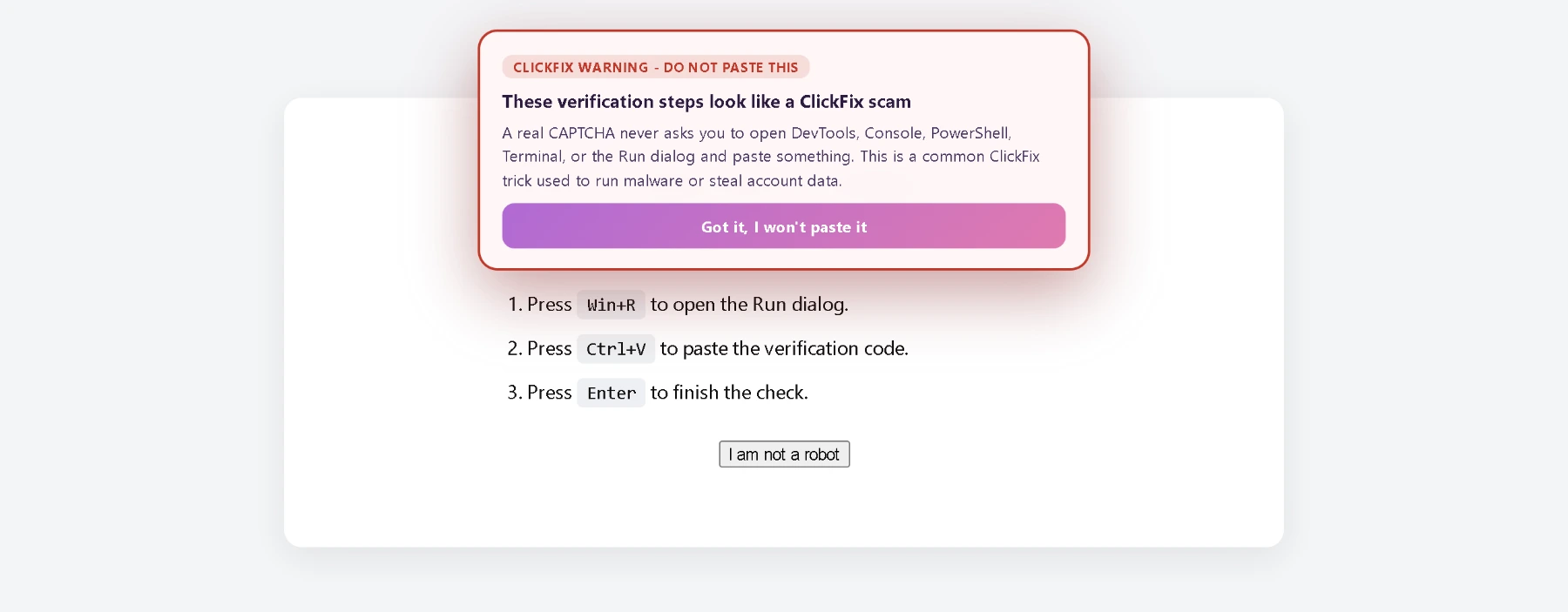
A fake verification page may ask you to paste a command into your computer. WardenOne flags that ClickFix pattern on the page and explains why it is dangerous before you follow the instruction.

It also blocks known malicious and look-alike destinations through browser rules and checks selected deceptive page behaviour. New scams can be missed, and an unflagged page is not a safety verdict.

How WardenOne makes a decision
ClickFix detectionReal capture
WardenOne ClickFix warning explaining that a real CAPTCHA never asks the user to paste a command
The warning appears on the suspicious page and names the behaviour it noticed.

02 · Before a file continues

Pause and review a download that deserves a closer look.

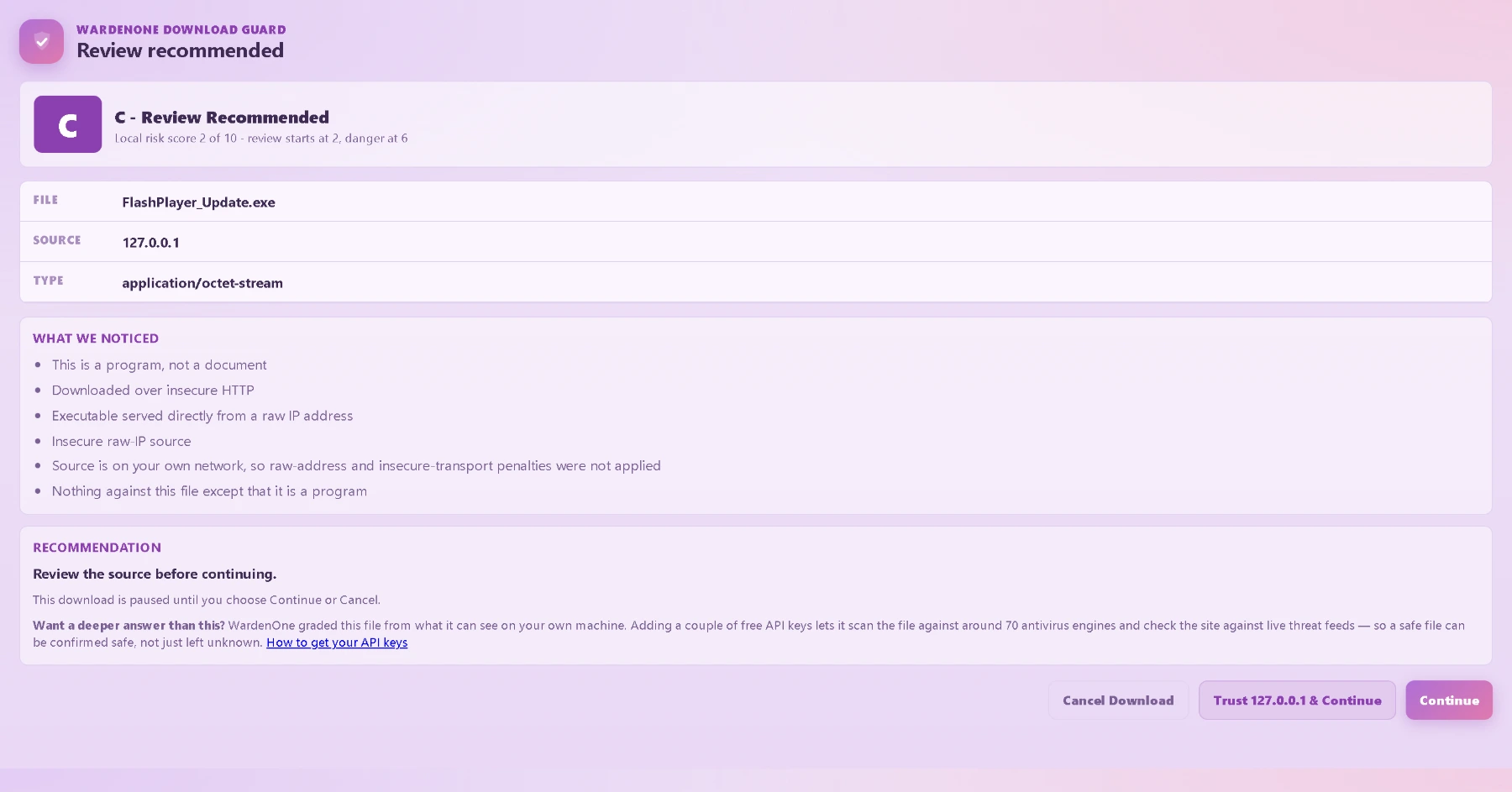
Download Shield uses the source, file name, type, browser signals and local rules to assess the downloads Chrome reports. A suspicious case opens a review with the reasons and a choice to cancel or continue.

File Shield is a separate check that starts only when you choose a file. It examines the bytes locally; optional outside lookups are your choice.

See the data and provider choices
Download reviewReal capture
WardenOne download review listing a file, its source, observed risk factors and the choice to cancel or continue
This capture uses a local test file and shows the review before the download proceeds.

03 · After the decision

See the reason in a local activity record.

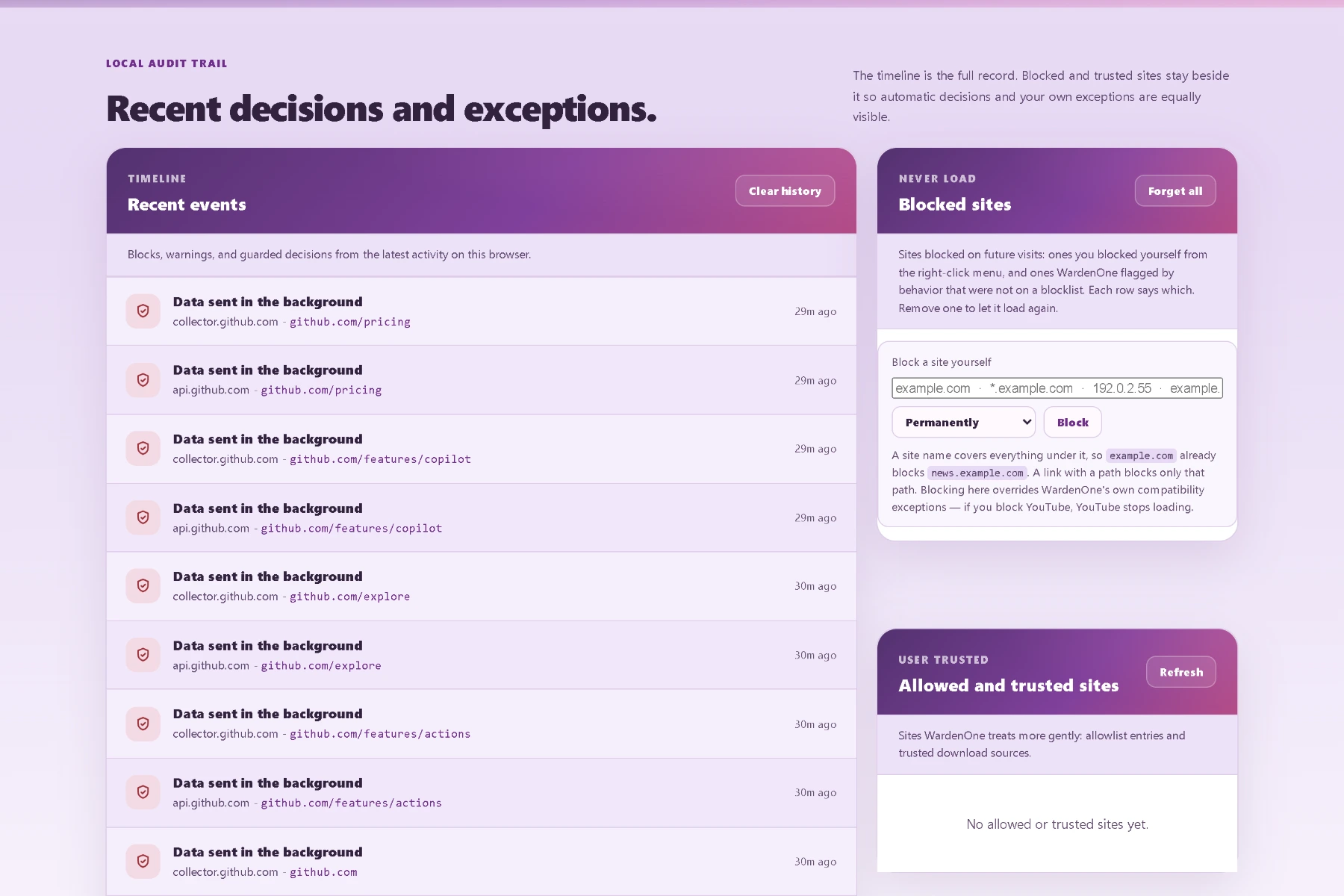
The Activity Centre groups recent blocks, warnings and exceptions. Protection Health shows whether core safeguards are running and whether a list or setting needs attention.

The record covers actions WardenOne observed or took. For request-level detail the Network Logger goes deeper, and an empty count does not prove a page made no risky requests.

How local records are stored
Activity CentreReal capture
WardenOne Activity Centre showing recent events, blocked sites and user-created exceptions
Recent decisions and your own exceptions appear together in the local record.

The complete list

Every feature, control and tool.

178 entries in six groups. Each one says whether it is on from the first run, waits for you to choose a mode, or runs only when you start it.

Scams and threats

Warnings and blocks for phishing, scams, malicious sites, redirects and risky extensions.

43 entries

Site, script and network threat detection

  • Warn on redirecting linksDefault: on

    Flags links that carry another address inside them — the ?url= and ?redirect= shape — so a link that looks like it stays on this site but hands you to another one says so first.

  • Warn on shortened linksDefault: on

    Flags bit.ly, tinyurl and the rest, which hide where a link actually goes until you are already there. You get told what it is before you follow it; the link still works if you want it.

  • Monitor for tracker requestsDefault: on

    Warns when a page quietly posts to a logging endpoint on someone else's domain. Hosts the network rules already block stay silent, so this only speaks about the ones that would otherwise have got through unseen.

  • Detect fake / phishing sitesDefault: on

    Warns when a domain is dressed up as one you know — a swapped letter, a lookalike character, the right brand on the wrong suffix. It reads the address rather than a list, so it catches ones registered this morning.

  • Login page age checkDefault: off

    Offers a Check domain age button when a site asks for a password. Only pressing it sends the domain to rdap.org, or your enabled WhoisXML service, to check its registration date. No page contents or typed values are sent. A recently registered domain can be a phishing signal. Off by default; answers are cached locally.

  • Block high-confidence look-alikesDefault: on

    For the clearest fakes (visual look-alikes like g00gle, keyboard typos, brand-on-wrong-TLD and homographs), show a blocking screen with options to leave, visit the real site or continue at your own risk. On by default.

  • Behavioral risk detectionDefault: on

    Catches brand-new / unknown sites that behave like trackers or scams — phoning home on arrival, random throwaway domains — even when they're on no blocklist. Warns; doesn't block.

  • XSS Behavior GuardDefault: on

    Warns when a value from the address bar, another site, or a page message reaches somewhere the browser would run it as code — the shape of a cross-site scripting attempt. Normal app routing, uploads and escaped examples are left alone, and the value itself is never recorded.

  • Script drift guardDefault: on

    Baselines third-party script hashes and warns when the same CDN/script URL later serves changed code with new behavior or outbound hosts. On by default.

  • Risky-site modeDefault: on

    New-looking or suspicious domains get stricter third-party scripts, frames, media, and background calls.

  • Anti-clickjacking checksDefault: on

    Warns before a click that matters — sign in, password, checkout, pay, transfer, authorise, allow, install — lands on something hidden, covered by another element, or otherwise not where it looks. Ordinary buttons in plain sight never raise it.

  • Intranet/router protectionDefault: on

    Checks page requests aimed at local admin panels by IP or local name. Page API hooks can be bypassed by hostile site code; keep the browser network rule below on to block direct private-network requests across pages and workers. Public-looking names that resolve to your router are handled below.

  • DNS rebinding detectionDefault: on

    Watches the address each site actually resolves to. When a normal-looking name comes back pointing at your own network — or answers publicly once and privately the next time, which is what a rebinding attack looks like — that name is blocked for the rest of the session. Being honest about the limit: the browser gives extensions no way to check an address before the request goes out, so the request that reveals the trick has already happened. This catches everything after it, not the first one. Pages you open yourself that live on your own network, like a local dev server, are left alone.

  • Enforce it at the network layer tooDefault: on

    Browser rules block direct private-network requests from public pages, including requests made by workers or through page APIs WardenOne does not see. Pages opened from your own network keep access to local devices. Turn this off if it breaks a local tool; the page-level check alone is easier for hostile site code to bypass.

  • Watch cross-site cookie requestsDefault: on

    Something embedded in a page — a comment box, a video player, an ad frame — can ask for its own cookies back across sites, using the one route browsers still allow. You were never shown who asked. WardenOne records every request with the name of whoever made it, refuses the ones from known trackers outright, and flags anything that asks while invisible or without you clicking a thing. Ordinary embedded sign-ins are left to work.

  • Refuse every cross-site cookie requestDefault: off

    Turns the above from watching into refusing: no embedded thing gets its cookies back across sites, tracker or not. Off by default, and left out of “Turn everything on”, because this is the mechanism behind signing in through an embedded box — comment logins, embedded checkouts, some SSO frames. Turn it on if you would rather those break than let anything through.

Threat blocklists and cryptomining

  • Block known malicious sitesDefault: on

    Hard-blocks known malware, phishing and scam domains from vetted threat feeds — tens of thousands of them, millions across the feeds — before the page loads at all. This is the one to leave on if you leave nothing else.

  • Block cryptominersDefault: on

    Stop drive-by mining scripts that spend your CPU and battery, and block pages from reaching mining pools. Mining pools stay reachable if you visit them yourself.

  • Deep cryptominer detectionDefault: off

    Catches miners a site hosts itself, which blocking can't see: reads the code of the background workers a page starts, and stops the ones running mining routines — including the replacements a miner starts when you kill it. Only the mining worker is stopped; the rest of the site keeps working. Off by default because it reads page code on every site you visit. Allowlist a site to leave it alone.

  • Auto-update blocklistDefault: on

    Pulls fresh phishing, scam, IP-logger, adult-warning and page-rule lists once a day. The built-in rules still work without it, but new threats stop arriving — and a list that failed to fetch keeps the copy already downloaded rather than leaving a gap.

Script Shield

  • Block scripts everywhereChoose a mode

    Lockdown: stop scripts on every site until you allow that site below.

  • Block scripts on this siteChoose a mode

    Only the site in your active tab.

  • Limit fingerprinting JavaScriptDefault: on

    Block known fingerprinting libraries while normal JavaScript keeps working. Fraud and bot-check scripts are a separate switch below.

  • Block fraud and bot-check scriptsDefault: off

    Blocks the device-check scripts that banks and shops use to decide if you are a real person — ThreatMetrix, DataDome, PerimeterX, Forter and others. They do fingerprint you. But the site has handed them the decision about whether you get in, so with this on a sign-in can be refused or an order declined and the site will not tell you why. That is why it is off unless you turn it on.

  • Smart trusted-script shieldChoose a mode

    Block third-party script files unless their host is trusted below. Known player and CDN hosts stay allowed, but some video sites may still not play — trust the site below if one breaks.

Pop-ups, redirects and page clutter

  • Block forced popupsDefault: on

    Stops popunders and new tabs a page opens without a real user action. Catches timer-based window.open tricks, hidden ad tabs, and background popups that appear after the page loads. On by default.

  • Strict ad-popup shieldDefault: on

    Blocks suspicious ad/affiliate tabs opened on click, including installer ads and "download + ad tab" tricks. Player controls, real downloads, and sign-ins stay native. On by default.

  • Block in-page popups & overlaysDefault: on

    Removes fake notification bells, subscribe panels, adblock nags, cookie/continue walls, and download-gate popups that sit on top of videos or pages. Shows an Undo chip when it hides something. Turn off if a site hides real content.

  • Auto-skip download adsDefault: on

    After you click a download link, skips a visible ad gate only when its continuation matches your request. Leaves unfamiliar gates for you to handle.

  • Block gestureless redirectsDefault: on

    Blocks the page from sending you to a different site when there was no recent click, form submit, or other real gesture. Catches delayed ad hops, adult redirects, and fake-download redirects.

  • Block popup and redirect tricksDefault: on

    Takes away the tricks a page uses to get a click it can spend: fake "Please confirm to continue" prompts, script-built frames holding a bare INSTALL badge, and embedded players that move your whole tab when you click them. Real confirmations, payment forms, captchas and ordinary players are left alone.

  • Stop back-button trapsDefault: on

    Three ways a page stops Back from working, all refused: putting the address you are already on straight back each time you press it; quietly stacking entries while you read, so Back has to be pressed once for every one of them; and shoving you forward again the instant you press Back. What separates a trap from an app you are using is whether anything you did asked for it, so ordinary browsing is untouched. Nothing already in your history is changed or removed — declining to add an entry is not the same as taking one away.

  • Detect redirect chainsDefault: on

    Watches server-side redirect hops and freezes long or rotating CPA chains before the final landing page. Helps when the URL changes too quickly for normal in-page checks.

  • Block meta-refresh bouncesDefault: on

    Stops pages from using <meta refresh> or refresh-style timers to move you off-site after a countdown. These are common on fake download and traffic-exchange pages.

Adult-site safety and SafeSearch

  • Warn before adult sitesDefault: on

    Shows an "are you sure?" screen before an 18+ site opens, and says whether a redirect sent you there or you chose to go, so a sneaky redirect never drops you (or a kid on the family computer) straight onto explicit content. One click continues.

  • Catch unlisted adult sitesDefault: on

    Catches adult sites that are not on any list yet, by how the page behaves rather than by name. Newly registered sites rotate faster than any list can follow. It judges on signals, so it will occasionally be wrong — the gate is a question, never a block.

  • SafeSearch and YouTube Restricted ModeDefault: off

    Forces SafeSearch on Google, Bing, DuckDuckGo, Brave Search and Yahoo, and Moderate Restricted Mode on YouTube, which hides mature videos and comments. A video it hides says it is restricted by an administrator, error 151: that message comes from this switch. Off by default.

Security Centre

  • Watch installed-extension changesDefault: on

    Keeps a local inventory of versions, permissions and enabled state. Harmless updates stay in the timeline; new powerful access is highlighted and explained. On by default.

  • Startup security checkDefault: on

    When Chrome starts, WardenOne scans your restored tabs and recently installed extensions for risky signs, then shows a report. Download Shield reviews risky downloads live as they happen instead of re-scanning old files on every launch. On by default.

  • Permission chain guardDefault: on

    Warns when one site asks for a risky chain of capabilities, like notifications plus camera, clipboard, location, screen share, or file access. On by default.

Watch-only activity

  • Background reportsWatch only

    Records background beacon attempts and the destination seen by WardenOne. Review them in Activity.

  • Hardware and file accessWatch only

    Records browser requests for hardware or files that WardenOne can observe. Browser permission prompts still make the access decision.

  • Browser capabilitiesWatch only

    Records observed clipboard, fullscreen, keyboard-lock and other powerful browser API use. It does not block these calls by itself.

Sign-ins and sessions

Guards for passwords, session tokens, payment forms, the clipboard and the login flows scams imitate.

18 entries

Sessions, forms, clipboard and scams

  • SessionShieldDefault: on

    Watch for login/session tokens exposed in risky places (localStorage, URLs, etc.) and check cookie safety. Never stores or shows full tokens.

  • Protect session tokensDefault: on

    Checks page requests, including those in embedded frames, for known token values and stops matching calls it sees to unrelated domains. Hostile page code can bypass these JavaScript hooks; browser rules still block listed destinations. Noisy trusted services are treated more calmly in the activity log.

  • Continuous token watchDefault: on

    Checks observed storage writes for token-shaped values after login, not just at page load. Hostile page code can bypass page-level hooks.

  • Detect & block form skimmersDefault: on

    Watches password and card fields on payment pages and can stop matching off-site requests it observes, including forms and request APIs in embedded frames. These page-level checks can be bypassed by hostile site code.

  • Payment card guardDefault: on

    Uses page-level form checks to warn on suspicious checkouts and stop matching card submissions it sees on insecure, look-alike, raw-IP, or known-dangerous forms. Embedded frames receive a lightweight card-exfiltration check; full checkout and reputation analysis stays on the top page.

  • Clipboard hijack protectionDefault: off

    Stop sites that secretly swap your clipboard — e.g. replacing a copied crypto wallet address with an attacker's. Keeps normal Copy buttons working. Opt-in.

  • Clipboard swap detectionDefault: on

    Catches clipboard-swapping malware at paste time: if you paste a crypto address that differs from the one you just copied (same coin, within 2 minutes), it warns and shows both so you can check before sending. Works even against malware outside the browser. On by default.

  • Keystroke pressure detectorDefault: off

    Warns when a page attaches an unusually large number of global keystroke listeners — the pattern a keylogger uses. It's a rough heuristic: rich editors and AI chat apps also attach many, so it can over-warn. Off by default; turn on if you want it.

  • Honeytoken modeDefault: off

    Plants fake decoy secrets (api-key, token...) in page memory that real site code never touches. If a script reads one, it's credential-recon behavior and you're warned. Experimental and safe (it yields if the page actually uses a name), but off by default.

  • Command paste guardDefault: on

    Detects ClickFix and self-XSS instructions such as Win+R, F12, Ctrl+Shift+I, DevTools, Console, PowerShell, and “enable pasting,” including fake “verify you’re human” steps. Suspicious programmatic clipboard writes are blocked, risky copied selections trigger a warning, and instruction-plus-command matches receive a stronger warning. Instruction text is read on the top-level page; embedded frames get the clipboard check only, and text drawn as an image or inside a closed shadow tree is not read at all. WardenOne does not access Chrome’s own DevTools interface. On by default.

  • Tech-support scam guardDefault: on

    Detects fake "your computer is infected / locked — call this number" pages and browser-lockers (pop-up dialog spam). Neutralizes the lock, frees you to leave, and shows a calm warning that your PC is fine. On by default.

  • Paste protectionDefault: on

    Warns before you paste a password, API token, private key, or seed phrase into a risky page — an insecure http:// page, a look-alike/phishing domain, or a form that submits to a different site. Stays silent on normal secure login forms. On by default.

  • Form trap detectorDefault: on

    Inspects login forms and warns if one looks fake or credential-stealing — e.g. it posts your password to a different site or raw IP, claims to be a brand the site isn't, or is an injected overlay. Known sign-in providers (Google, Microsoft, Okta...) are trusted, so real logins stay silent. On by default.

  • Fake update detectorDefault: on

    Warns on "your browser/Windows is out of date — update now" pages that aren't a real vendor (Google, Microsoft, Mozilla...). Real updates never come from a web page, so a fake-update lure plus an installer download or off-site button is a common malware scam. On by default.

  • OAuth grant guardDefault: on

    Warns on risky consent grants from major account, work, developer, social, and media providers — such as email, files, repositories, admin, posting, messaging, or offline access. Ordinary sign-in and basic profile access stay quiet. On by default.

  • Breach & site-history checksDefault: off

    Allow the "has this site been breached?" lookup below. Contacts the public Have I Been Pwned database. Opt-in.

Forget Me and logins

  • Never let sites remember meChoose a mode

    When you close a site, WardenOne wipes its cookies and stored data — so it can't keep you logged in or recognise you next time. Sites on your allowlist stay logged in as normal.

  • Also clear the site's browser historyChoose a mode

    Most private. Off keeps your history. Chrome may ask for history access when you turn this on.

Downloads and files

A review before a suspicious download continues, a local file inspector, and optional reputation providers.

20 entries

Download Shield and optional reputation checks

  • Download ShieldDefault: on

    No-account scanner. Grades downloads A-F from the URL, source, filename, file type, Chrome signals, trust list, and local blocklists. Known-bad sources are blocked outright; risky ones show a review you can cancel.

  • Forced Download ProtectionDefault: off

    Opt-in: stops clear automatic or disguised download links and holds unexpected files for review. Intentional downloads and exports stay available, including downloads that start on a thank-you or countdown page. Checks intent locally, separately from Download Shield. Some sites may need an exception.

  • Check download domain ageDefault: off

    Opt-in domain-age lookup for suspicious downloads. Uses RDAP by default, or WhoisXML enrichment when enabled. Sends only the source domain, never the file or full URL.

  • Google Safe Browsing URL checksDefault: off

    Optional URL reputation. Requires your own API key. Once on, every page you open, risky link, sensitive form destination and download is sent to Google as scheme, host and path.

  • VirusTotal reputationDefault: off

    Optional URL report lookup. Requires your own API key. The same key is used for URL-content hash lookup below.

  • VirusTotal URL-content hash lookupDefault: off

    Optional for small risky downloads. Chrome does not let extensions read saved files, so WardenOne re-fetches up to 50 MB from the download URL, hashes that response locally, and sends only the hash. Never uploads contents.

  • URLhausDefault: off

    Malware URL intelligence from abuse.ch. Once on, every page you open, risky link, form, paste and download is sent to abuse.ch as scheme, host and path.

  • AbuseIPDBDefault: off

    Raw-IP server reputation. Blocks high-confidence abusive IPs and warns on suspicious IP report scores.

  • OpenPhishDefault: on

    On by default. Downloads the official keyless Community feed and matches URLs locally; your browsing addresses are never sent to OpenPhish.

  • PhishTankDefault: off

    Community phishing database checks. Sign-in-looking pages, risky links, forms, pastes and downloads are sent to PhishTank as scheme, host and path.

  • WhoisXML APIDefault: off

    Domain registration enrichment. Adds age, registrar, name server, privacy/redaction, and ownership-country clues to risky domains.

  • WhoisXML Domain ReputationDefault: off

    Uses the WhoisXML key above to score domain safety and surface malware/phishing blocklist warnings.

  • WhoisXML Threat IntelligenceDefault: off

    Uses the WhoisXML key above for IoC matches against malicious domains, URLs, IPs, and threat types. Sign-in-looking pages and downloads are sent as scheme, host and path.

Files, extensions, providers and updates

  • File ShieldOn demand

    Choose or drop local files or a folder to inspect formats, executable structures, scripts, shortcuts, archives, documents and SHA-256 hashes. Files are not opened, executed or uploaded. An optional VirusTotal button sends only a hash. Findings do not prove a file is safe; keep your antivirus.

  • Download ReviewOn demand

    Known-dangerous browser downloads are blocked; suspicious ones can be held for an A–F review explaining the source, name, type and reputation evidence. Download Shield cannot freely read the saved file; use File Shield for its actual bytes.

  • Extension Security Centre and pre-install checksOn demand

    Review installed extensions, permissions and reputation clues, inspect changes and startup findings, or check an extension ID or Store link before installation. WardenOne reports evidence and cannot guarantee that an extension is harmless.

  • Site Permission ScannerOn demand

    Use the popup scan to review remembered camera, microphone, location and other site permissions. Browser settings remain the place to revoke permissions you no longer want.

  • Seven optional reputation providersOpt-in

    Google Safe Browsing, VirusTotal, URLhaus, AbuseIPDB, OpenPhish, PhishTank and WhoisXML add different checks. Most need your key; OpenPhish downloads a public feed for local matching. WhoisXML has three independently enabled checks. Automatic providers start only when enabled and may receive addresses or domains; review their data disclosures.

  • Manual VirusTotal URL scannerOn demand

    Paste a URL in the popup and start its lookup using your own key. This can work while automatic VirusTotal checks are off. The pasted URL, including its query string, is sent to VirusTotal; remove secrets or private tokens before scanning.

  • Browser Update Guardian and WardenOne build noticesOn demand

    The popup can warn about an outdated browser. Official GitHub ZIP builds can compare their packaged commit with the latest complete build; Settings About explains the result, Check again and manual update steps. The notice does not install an update for you.

Privacy and tracking

Tracker, cookie and fingerprinting controls, IP and certificate protection, and device permissions.

45 entries

Tracking, cookies and fingerprinting

  • Block trackers & ad analyticsDefault: on

    Blocks known third-party trackers and recognized Google Analytics collection hits sent through a site's own domain.

  • Do Not Track & privacy signalsDefault: on

    Tell sites you opt out of tracking via Do-Not-Track and Global Privacy Control (GPC has legal weight under CCPA)

  • Reduce third-party Client HintsDefault: on

    Removes detailed browser version, OS version, architecture, bitness, and device model from third-party requests. Known tracker hosts also lose basic browser hints. Also reduces detailed navigator.userAgentData browser, OS and model metadata by default, while keeping CPU architecture and bitness for download selection. Hosted editors and identity providers keep their compatibility data.

  • Anti-fingerprinting noiseDefault: off

    Optional changes to page and frame graphics, audio, text and display measurements. Core count and memory stay native because workers can reveal them. Canvas pixels and image exports stay unchanged. Web workers are not covered and can still reveal real graphics. It may make rare setups more unique, so it stays opt-in.

  • Fingerprint probe detectionDefault: on

    Detect canvas, audio, WebGL, font, layout, and device probing without changing values. Feeds the local risk detector and tracker learner.

  • Block third-party cookiesDefault: on

    Removes cookie headers for known trackers, confirmed tracking aliases and reviewed Google, Stripe, Spotify and Facebook resources. Supported protected frames also lose cookie API access before their scripts run. Direct visits, first-party service use and media workarounds retain cookies. Turn off for one site if needed. Unknown hosts keep existing policy.

  • Login compatibilityDefault: on

    Keeps anti-tracking on, but exempts official sign-in, CAPTCHA, and payment endpoints so Google/Microsoft/Apple/Okta/Auth0/PayPal/Stripe-style logins can finish. On by default.

  • No persistent cookiesDefault: off

    Wipes every cookie when you fully close the browser, so nothing tracks you across sessions. Logins still work while you browse (you may just re-sign-in next launch). For trackers, use Block third-party cookies. Opt-in.

  • Block first-party trackersDefault: off

    Catch additional analytics paths served from the site's own domain. Opt-in. Recognized Google Analytics collection hits are already covered by Block trackers & ad analytics.

  • Block CNAME-cloaked trackersDefault: on

    On by default. Blocks over 100,000 known disguised tracker addresses from a packaged list; fraud-check and tag-manager addresses only lose cookies. Turn off for any site that needs an exception.

  • Local tracker learnerDefault: on

    Finds tracker candidates across your sites. Learning stays on this device; known tracker blocking works independently.

  • Learning modeDefault: on

    Automatic by default: WardenOne learns from its own cookie, canvas, storage and matching URL-ID observations across three sites. Learned trackers stay blocked until you unblock them. Review mode requires approval for new blocks; saved blocks stay.

  • Block tracker cache validatorsDefault: on

    On by default. Removes If-None-Match and ETag only on passive requests to known tracker hosts, preventing cache-tag respawning while keeping normal browser caching. Repeated tracker responses can use more bandwidth.

  • De-AMP pagesDefault: off

    Skip Google/AMP cache pages and go straight to the real article. Rewrites AMP links and redirects AMP pages to their original URL. Opt-in.

  • Strict cross-site referrer protectionDefault: off

    Removes the Referer header on cross-site requests while keeping same-site referrers. Sign-in, CAPTCHA, and payment destinations are excluded for compatibility. A download link you press keeps the site’s address, so file hosts that check it still work. Opt-in because other hotlink and hand-off flows rely on a referrer.

  • Auto-reject cookie bannersDefault: on

    When the banner offers a way to say no, WardenOne takes it — opening the choices if it has to, turning off optional tracking, never clicking Accept. On by default.

  • Lift full-screen cookie wallsDefault: off

    When it offers none: the sheet that covers the page and freezes scrolling. Lifted without clicking anything, so nothing is consented to. Goes back if the page turns out to be empty behind it. Some sites keep the wall on a separate domain, where nothing can reach it. Opt-in.

  • Stop email tracking pixelsDefault: on

    In Gmail, Outlook, Proton, Yahoo, Fastmail and Zoho. A marketing email hides a 1×1 image with your address in its URL; loading it tells the sender you opened it, when, and roughly from where. WardenOne swaps those for a blank pixel of the same size, so nothing looks broken. A pixel the client had not loaded yet is stopped before any request is made; one already loading is cancelled mid-flight, and either way the part that identifies you never goes. Gmail proxies remote images, but keeps the original address in the link, so the real tracker can still be recognised. Where a provider leaves no trace of the source, only the shape of the image is left to go on — and whether the provider fetched it on its own servers is outside what any extension can see. On by default.

  • Clear a site's cookies after acceptingDefault: off

    When you accept one yourself. The site's consent and tracking cookies, and the IDs it stored, are cleared once you leave. Sign-ins are left alone. Off by default.

  • Remove a site's service worker when you leaveDefault: off

    A service worker is the one thing a site leaves running after you close the tab — it sits in front of every later request to that site and can wake up on its own. This removes it once you have closed every tab for a site that installed one while you were there. Off by default, because sites that legitimately use one for offline reading or notifications will lose that until you visit again.

  • Skip tracking redirectsDefault: on

    Opens the destination inside supported affiliate and click links without visiting the tracking host. Also removes link click pings. Links without a clear destination keep working normally.

  • Remove tracking parameters from page addressesDefault: on

    Removes click and campaign identifiers such as fbclid, gclid and utm_ from a page address before the request leaves your browser, whether you open a link or a site rewrites its own address. Links on the page are left as written, and signed or sign-in links are never changed. Also applies to explicit clean-link actions, and works whether or not the ping switch above is on.

  • Clean links copied inside pagesDefault: on

    Auto-strips tracking (utm_, fbclid, YouTube si, Amazon ref and similar) as you copy, so pastes come out clean. Covers Ctrl+C on a link and site Share/Copy buttons. Chrome’s own “Copy link address” and the address bar are browser-level, so no extension can catch them — for those use the right-click “Copy clean link”, or the keyboard shortcut for this page (listed under Keyboard shortcuts below). On by default.

  • Click to load social embedsDefault: on

    Replace Facebook, X, Instagram and TikTok embeds with a placeholder so they can't load or track you until you click. Opt-in.

  • Clear tracker supercookiesDefault: on

    Wipe localStorage in known third-party tracker frames (Scorecard, Criteo, Taboola, etc.) so they can't re-identify you after a cookie clear.

IP protection, HTTPS and certificates

  • Block IP-grabber beaconsDefault: on

    Stops recognized logger images and other embedded requests before they leave. Direct visits have separate page-warning and malicious-site controls.

  • Warn on IP-logger pagesDefault: on

    Intercepts direct visits to known logger links with a warning before the destination loads. If this is off, malicious-site blocking may still stop the visit without a warning.

  • IP lookup blockingDefault: on

    Blocks requests to common third-party IP lookup services, so a page cannot ask an outside service what your address is. Native WebRTC is left alone by this switch; the one below hardens it. A VPN or proxy is still needed to hide your IP from sites you directly visit.

  • Harden WebRTC (may break calls)Default: off

    Strips the ICE servers from peer connections and refuses ones created without a recent click, so a page cannot harvest your local and public addresses through WebRTC itself. Off by default: video calls, screen sharing and some streaming can stop working with it on. Needs IP lookup blocking on.

  • Force HTTPSDefault: off

    Automatically upgrade insecure http:// pages to secure https:// before they load. Seamless on sites that support it.

  • Warn before an insecure sign-inDefault: on

    Stops you the moment you click into a password box on an unencrypted page, before you've typed anything, and offers the secure version of the site. Also catches the sneakier case: a page showing a padlock whose form still posts over plain http. Router and other local-network logins are left alone.

  • Block bad certificatesDefault: on

    Show a WardenOne trust block when Chrome reports expired, revoked, self-signed, hostname-mismatch, or broken TLS certificates.

Camera, microphone, location and media

  • Media ShieldDefault: on

    Watch camera, microphone, screen-share, hidden media, and autoplay abuse

  • Full-screen address barDefault: on

    In full screen the browser's own address bar is hidden, so a page can paint a fake one showing a site it isn't. Warns when a page does that — video, games and slideshows are untouched.

  • Fake sign-in windowsDefault: on

    Warns when a page draws a box made to look like a separate browser sign-in window — title bar, close button, an address bar it painted itself — and asks for a password in it. Online IDEs and design tools are excluded.

  • Notification baitDefault: on

    Flags pages that talk you into clicking Allow on the notification prompt, and alerts that arrive reading like “your PC is infected”. Nothing is suppressed — alerts pushed from a service worker are outside a page script's reach.

  • Block camera & microphoneDefault: on

    Blocks camera and microphone access a site starts on its own — no click or keypress from you in the last few seconds, and no standing permission in Chrome. When you are actually using the page, the request goes to Chrome’s own prompt and you decide there, with the browser’s recording indicator; a site you have already allowed in Chrome is not second-guessed. Speech recognition, which reaches the microphone by a different route and which Chrome sends away to be transcribed, follows the same rule. YouTube, Twitch, Spotify and X are exempt.

  • Block screen captureDefault: on

    Blocks screen-share requests a page makes on its own. On by default because a screen-share prompt you did not go looking for is almost always a scam walking you into one. After a click of yours, Chrome’s own picker appears and nothing is shared until you choose a screen or window; there is no “always” for screen capture — the picker comes up every time. YouTube, Twitch, Spotify and X are exempt.

  • Block location requestsDefault: on

    Deny browser location prompts, kill location watches, mask page timezone/language hints, and ask Chrome to block location access globally. Pausing WardenOne on a site, or switching this off for one site, hands that site back to Chrome’s own location prompt — it never grants location by itself. A VPN is still needed to hide IP-based location.

  • Block hidden media abuseDefault: on

    Stops players that run with nothing on screen — the ones that exist to autoplay an ad, hold a wake-lock, or keep a tab alive. Visible players you can see and pause are left alone, as are YouTube, Twitch and X.

Privacy cleanup, backup and help

  • Privacy Cleaner and WardenOne data erasureOn demand

    Choose which browser data to clear and the time range. Review consent cookies separately from clearing every sign-in. You can also erase WardenOne activity, notices, caches or other saved data from Settings.

  • Settings backup and importOn demand

    Export your settings and lists, preview an import and restore supported choices. API keys are excluded from backups. You can also reset selected settings or return to defaults.

  • Session Security Grade and Emergency LogoutOn demand

    The popup grades observed session risks and offers Emergency Logout to clear the relevant session data when you choose it. A good grade does not guarantee a site or account is safe.

  • Network and DNS guideOn demand

    Read how DNS and device-level tools can extend protection beyond this browser. WardenOne itself does not install a VPN or protect every app on your network.

  • Help, privacy, source and creditsOn demand

    Report a problem or idea, read the privacy and permissions explanations, inspect the open-source project, and see credits and licences. No WardenOne account is needed and WardenOne sends no telemetry.

Ads, media and pages

AdShield, player-specific handling for YouTube, Twitch and Spotify, search cleanup and Element Zapper.

20 entries

AdShield and search cleanup

  • AdShield: General sitesDefault: on

    Blocks ad-server requests and hides ad elements across the web (EasyList/uBlock-style filters: network + cosmetic + anti-adblock scriptlets).

  • Remove ad blocker warningsDefault: on

    Gets rid of the “you’re using an ad blocker, please turn it off” messages, and the blank pages some sites show instead. AdShield’s filter rules already stop most sites noticing; this clears the ones that still get through. Logins, age checks and bot checks are never touched, and if a page is empty behind the message it is put back and this pauses itself on that site.

  • AdShield: YouTubeDefault: on

    YouTube-specific AdShield engine (video ads) - blocks ad breaks and ad UI while keeping playback stable through YouTube updates.

  • AdShield: TwitchDefault: on

    Twitch-specific AdShield engine (stream ads) - removes the pre-roll and mid-roll ads Twitch stitches into the video stream, while keeping playback stable.

  • Steadier Twitch playbackDefault: on

    Keeps a few seconds of video buffered so ad breaks AdShield removes, and network hiccups, do not stall the stream. Turns Twitch's Low Latency mode off unless you switched it on yourself, which puts the stream a few seconds further behind live.

  • Hide search AI answersDefault: off

    Blocks Google AI Overview and Brave Search AI answers at pre-paint so the generated answer panel does not flash in first.

  • Google: plain web results onlyDefault: off

    Switches Google into its own "Web" mode — ten blue links, no AI overview, no enriched panels. It removes the clutter at the source instead of hiding it after paint, so nothing can flash in first and no selector can go stale. Your Images, Videos and News tabs still work normally.

  • Mark answer-scraper resultsDefault: off

    Dims and labels results from sites that rank by republishing other people's answers, with a one-click Show anyway. It never removes them — a search filter that silently drops the one result you needed fails invisibly, and you'd never know. Works on the Google, Bing, DuckDuckGo, Brave Search and Yahoo results pages.

  • Warn about dangerous search resultsDefault: on

    Marks results WardenOne already knows something bad about — on a malware or scam blocklist, a known IP-logger, a name spelled to look like a well-known site, or a bare IP address — so you see it before you click instead of being stopped afterwards. Nothing is hidden or reordered and the link still works. It never marks anything safe: a result with no warning is one nothing is known about, which is not the same as one that has been checked. Answers come from lists already on your device — no result is ever sent anywhere to paint a badge. For a deeper look at one link, right-click it and choose Check this link. Works on the Google, Bing, DuckDuckGo, Brave Search and Yahoo results pages.

  • Hide sponsored search resultsDefault: on

    Removes sponsored Google/Brave search blocks and stops their ad-click links. Ordinary results for the same website stay usable.

Player tools

  • Watch from earlier (stream rewind)On demand; default: on

    Adds a "Rewind" button by the player controls that lets you jump back to before you opened the tab — from when you joined, 30 minutes back, or the very start — and watch what you missed in Twitch's normal player. Works only when the streamer saves past broadcasts (VODs); the button appears only on streams where it's available. No recording, no extra memory. On by default.

  • Twitch local rewind (DVR)On demand; default: off

    Adds 10s / 30s / 1m / 5m rewind buttons and a scrub timeline beside Twitch's volume control, plus speed (1–2×, eases back to live) and keyboard control (←/→ seek 10s, ,/. frame-step). Delayed playback keeps running until you press LIVE. It records the live stream into your computer's memory while the tab is open, so it uses noticeably more RAM and CPU (and more with a longer buffer or higher stream quality). It cannot recover video from before the tab started watching. Opt-in.

Page tools and streaming

  • Hide an element and bring it backOn demand

    Start Element Zapper from the popup or right-click menu, check the outline, and click. Keep removing items, then press Done or Esc. Ctrl+Z undoes removals on the open page, even after the tool closes. Saved removals stay hidden after reload; Hidden elements restores them individually.

  • YouTube, Twitch and Spotify AdShieldOn demand

    AdShield has player-specific handling for YouTube and Twitch, and handles Spotify audio ads in the web player. These are compatibility workarounds: sites can change their players, and blocking may be incomplete.

  • Right-click toolsOn demand

    The WardenOne menu includes Element Zapper, Copy clean link, Check this link, Check selected text, image and frame inspection, Sleep this tab, Never sleep this site, Close this tab and Block this site. Sleep and close check for unsaved forms and active camera or microphone use.

  • Command Palette and keyboard shortcutsOn demand

    Open the palette, type an action and choose it: scan, pause here, clean the address, hide an element, open a tool or change settings. Alt+Shift+O is suggested for the palette and Alt+Shift+U for cleaning the address; the browser may leave a shortcut unassigned. Assign or change keys in your browser.

Page notices, badges and Element Zapper

  • Show block notificationsDefault: on

    Pop-up toast when something is blocked, with the reason

  • Show on-page badgeDefault: on

    A soft, fading guard badge in the corner - brightens when it blocks something, warns if a component breaks

  • Silent modeDefault: off

    Full protection stays on, but WardenOne hides non-critical popups, badges, and notifications. The download bar still appears, and your toast and badge choices above come back the moment Silent is off.

  • Element ZapperOn demand; default: on

    Adds the page tool and right-click menu for hiding an element on a site. Zapped elements are saved locally, stay hidden after reload, and can be restored below.

Control and evidence

Activity, diagnostics, per-site control, your own rules, and tools for speed and memory.

32 entries

Activity, diagnostics and network tools

  • Activity CentreConfigurable

    Review blocked, warned-about and observed events, their reasons, and the site involved. Choose normal retention, browser-session history, or no saved Activity and notifications in Settings. Clear observations keeps your approved blocks and firewall choices.

  • Learned trackers historyOn demand

    Search every tracker the learner has blocked, unblocked or suggested, see when each was first learned and the evidence behind it, and unblock or block it again. The popup shows only the latest five.

  • Notification Centre and display choicesConfigurable

    Review notices, group repeats, snooze or mute types, choose where cards appear and how long they stay, set history retention and optionally show an unread toolbar count. Silent Mode hides non-critical notices while protection continues.

  • Notification soundsDefault: off

    Sounds are off by default. Choose which severities make a sound, set the volume, and customise individual notice types in Notification Centre.

  • Protection Health and diagnosticsOn demand

    The popup separates switches enabled in storage from evidence that guards reached the current page. Inspect list status, permission problems and diagnostics; preview a diagnostic export before sharing it.

  • Verify and RepairOn demand

    Run Verify from the popup to check installation and guard state. Repair reconciles WardenOne with saved choices and refreshes guards where possible. Reload pages when requested; a successful repair is not proof that every site threat will be stopped.

  • Privacy Self-TestOn demand

    Run controlled checks for exposed browser surfaces and compare protected measurements with clean ones. It tests the current browser environment and reports limits; it does not certify anonymity.

  • Network LoggerOn demand

    Open the logger for the active tab to inspect requests, their types and blocking decisions. Filter the view, inspect an entry and use the evidence to refine your own rules.

  • Site FirewallOn demand

    Manage per-site resource rules by destination and request type. Advanced rules can break pages, so keep changes narrow and remove a rule if it blocks something you need.

  • My Rules and Custom ListsOn demand

    Add your own network or cosmetic rules, subscribe to custom filter lists, and review list freshness and source failures. A failed refresh does not automatically remove a previously downloaded list.

Settings, layout and site choices

  • Settings search, favorites and change historyOn demand

    Search names and descriptions, star favorites, review recent changes, compare with Recommended, and inspect enabled choices that may affect compatibility.

  • Rearrange popup sectionsOn demand

    Move sections into the order you use them. Search still finds controls, and rearranging does not change any protection switch.

  • Themes, density and site cardAppearance

    Choose Light, Dark or System for WardenOne pages. Settings can be Compact or Comfortable. The popup site card offers a one-line summary or separate tracker, ad and other counts; open it for the Site Dashboard.

  • Site Dashboard and per-site controlOn demand

    Open the current site card to review its activity, pause protection, or override individual controls for that site. Settings lists pauses, allowlists, blocked and trusted sites, hidden elements, never-sleep sites, WebGL exceptions and firewall rules.

  • Sleep profiles, tab limits and never-sleep sitesConfigurable

    Choose Gentle, Balanced, Aggressive or Emergency timing; set the maximum tab count and minimum inactive time. Keep selected sites awake. Audio, pinned tabs, unsaved forms and login or payment pages have their own exceptions; active camera/microphone and supported video sites are protected automatically.

  • WebGL controls and site exceptionsDefault: off

    Leave WebGL Off, disable it on selected sites, or disable it everywhere except allowed sites. Add the current site or manage blocked and allowed hosts. Off by default: games, maps, 3D viewers and some web apps can break without WebGL.

  • EyeShield adjustments and site profilesDefault: off

    Choose Normal, Light, Dark or Ultra, then adjust brightness, contrast, saturation, warmth and grayscale. Apply changes globally or save a profile for one site; sites can inherit the global choices or turn EyeShield off. EyeShield starts off.

Memory Shield and Resource Saver

  • Sleep inactive tabsDefault: on

    Saves RAM by putting unused tabs to sleep (keeps them in the tab bar; they reload on click). Nothing is closed.

  • Never sleep pinned tabsDefault: on

    Leave pinned tabs awake when Memory Shield chooses inactive tabs to sleep.

  • Never sleep tabs playing audioDefault: on

    Keep tabs playing audio awake, including music or radio in the background.

  • Never sleep tabs with unsaved formsDefault: on

    Keep tabs with unsaved form input awake so sleeping a tab does not discard your work.

  • Never sleep login / payment pagesDefault: on

    Keep recognised login and payment pages awake while you use them.

  • Tab LimitChoose a mode

    Over your limit, sleeps (or closes) the oldest eligible unused tab. Active tabs, camera/mic sessions, and allowlisted tabs are always protected. Pinned, audio, unsaved-form, and login/payment tabs follow the Safety switches above.

  • Close instead of sleeping (aggressive)Choose a mode

    Off = sleep the oldest tab (reversible — it reloads on click). On = actually close it.

  • Notify me when a tab is closedChoose a mode

    A heads-up so a closed tab is never a surprise.

  • Block autoplay video & audioDefault: off

    Stops video and audio from playing on their own, including muted video (it still uses GPU/data). Click-to-play always works. Big CPU/battery/data saver.

  • Throttle background tabsDefault: off

    Pauses animations and video playback in tabs that aren't visible, and slows their background work, to save CPU and battery. Resumes instantly when you switch back.

  • Block prefetch & preloadDefault: off

    Stop sites from pre-downloading pages and resources you may never open. Saves data on metered/mobile connections.

  • Lazy-load offscreen imagesDefault: off

    Only load images and embeds as you scroll to them, instead of all at once. Saves data and memory. May rarely affect image-heavy sites.

  • Disable YouTube Ambient ModeDefault: off

    Removes the decorative glow around videos and colour bleed in YouTube's blurred home header. Playback and your YouTube preference stay unchanged.

  • Stop animated video previewsDefault: off

    Stops recognised muted card and hover previews across sites. Normal players and videos with controls still work.

  • Pause animated GIF imagesDefault: off

    Shows still frames for visible GIF and GIPHY images. Click one to play it. Off by default.

Generated from WardenOne 1.0.3 (commit 74dbb5f): the extension's settings data and onboarding feature guide. Defaults describe a fresh install; the Recommended and Maximum privacy choices at first run can turn more on.

Start with the recommended baseline.

The installation guide walks through the official ZIP, browser setup and the first-run choices.