
Download
Install WardenOne, step by step.
WardenOne installs from an official GitHub ZIP. You extract it, then tell your Chromium browser to load the folder. This guide shows exactly what to choose.
Free · Open source · Chromium 121+ (Chrome, Edge, Brave and Opera)
WardenOne-latest.zip directly from the WardenOne release. Extract the ZIP, then choose Load unpacked on your browser's extensions page.Manual installation
From ZIP to a working extension.
Keep the extracted folder somewhere permanent. Your browser loads WardenOne from it every time it starts.
- 1
Download the official ZIP.
Use the button above to get
WardenOne-latest.zipfrom the GitHub release. Save it somewhere you can find it, such as Downloads.Illustration · ZIP fileWardenOne-latest.zipSource: github.com/iri-dev/WardenOne - 2
Extract it and keep the folder.
Right-click the ZIP and choose Extract All on Windows, or use your system's extract option. Open the extracted folder and find
manifest.json. This is the folder you will choose later, not the ZIP itself.Illustration · extracted folderWardenOne/├─ manifest.json ├─ background.js └─ icons/ …
Choose the folder that directly contains manifest.json. - 3
Open your browser's extensions page.
Type the address for your browser into its address bar. These are browser pages, so they're shown as text rather than links.
Chromechrome://extensionsChrome instructions ↗Edgeedge://extensionsEdge instructions ↗Bravebrave://extensionsBrave help ↗Operaopera:extensionsOpera instructions ↗ - 4
Turn on Developer mode and load the folder.
On the extensions page, switch on Developer mode. Choose Load unpacked (Opera may say Load Unpacked Extension), then select the folder with
manifest.jsondirectly inside it.Please leave Developer mode on afterwards. Chrome switches unpacked extensions off the moment it goes off, so WardenOne would stop protecting you until you turned it back on.
If the browser says the manifest is missing, you probably picked the ZIP or its outer folder. Open the extracted folders until you see
manifest.json, then select that folder.Illustration · extensions pageDeveloper modeLabels and placement vary by browser. - 5
Say hello to the welcome screen.
Once the browser loads the extension, WardenOne opens its onboarding guide. Choose your starting protection level and pin the icon if you want quick access.
No welcome screen? Check that WardenOne is listed and enabled on the extensions page. You can also open it from the Extensions menu.
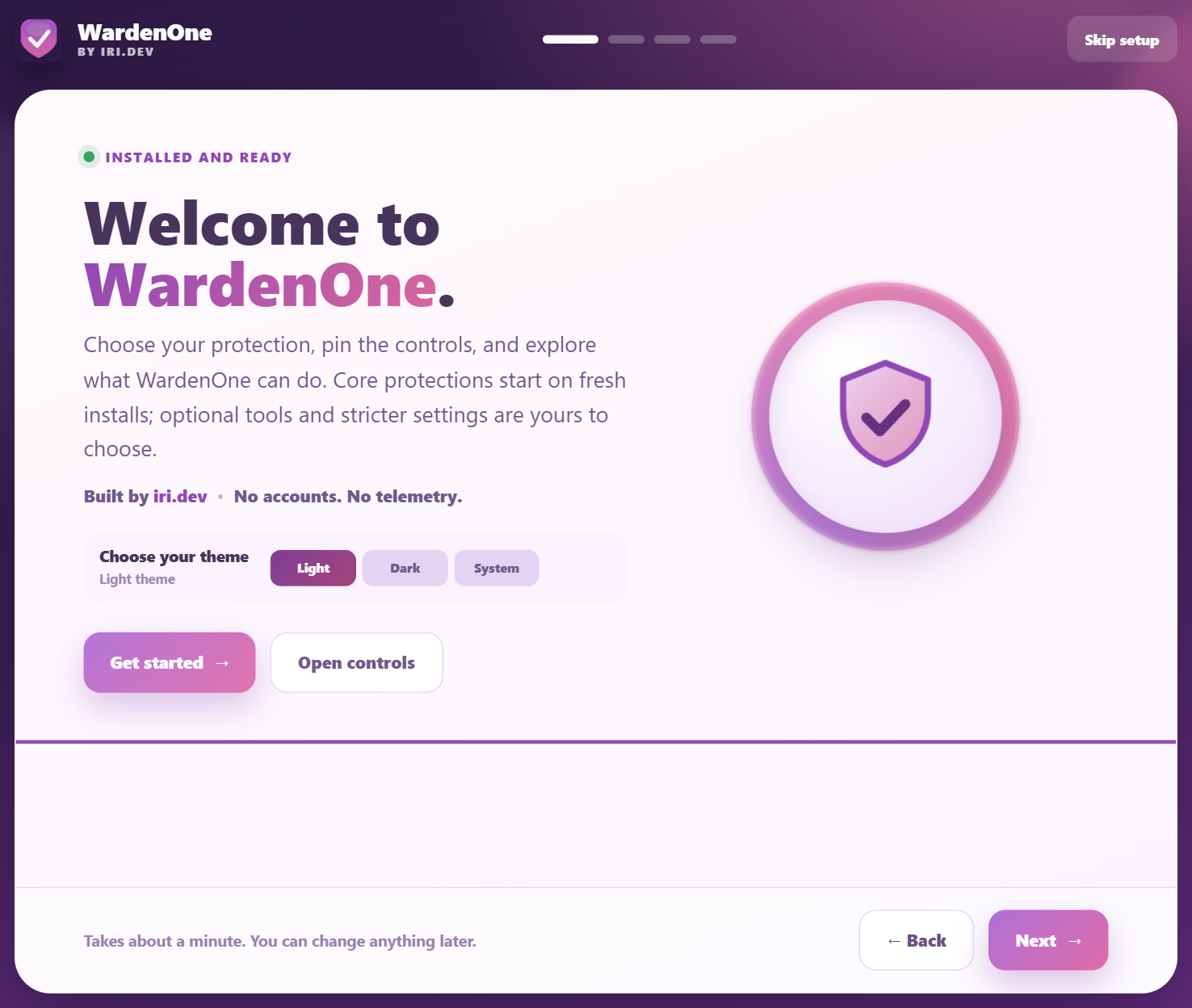
The actual welcome screen after a fresh install.
Already installed?
Updating an unpacked copy.
An unpacked install doesn't update itself. Download the latest official ZIP, extract it, replace the files in your saved WardenOne folder, then press Reload on the extensions page.
Keep the folder at the same path, or the browser can treat it as a different extension and your settings won't come with it. Settings → About WardenOne shows your version and build ID, and the popup can tell you when a newer complete build exists. It never installs anything for you.
If something doesn't work
“Manifest file is missing or unreadable”
manifest.json. Don't select the ZIP or a parent folder.Developer mode or Load unpacked is unavailable
WardenOne turned off on its own
WardenOne loads, but a site stops working
Optional, for the curious
Check the file you received.
Each release publishes a SHA-256 checksum next to the ZIP and a GitHub build attestation that ties those exact bytes to a build of main.
Neither check proves every protection is bug-free, and you don't need them to install. They give you extra evidence about the exact file you downloaded.
# In the folder holding both files
PS> $expected = ((Get-Content .\WardenOne-latest.zip.sha256 -Raw) -split '\s+')[0]
PS> $actual = (Get-FileHash .\WardenOne-latest.zip -Algorithm SHA256).Hash
PS> if ($actual -ine $expected) { throw 'WardenOne ZIP checksum mismatch' }
PS> 'SHA-256 matches'
$ gh attestation verify WardenOne-latest.zip \
    --repo iri-dev/WardenOne \
    --signer-workflow iri-dev/WardenOne/.github/workflows/gate.yml \
    --source-ref refs/heads/main